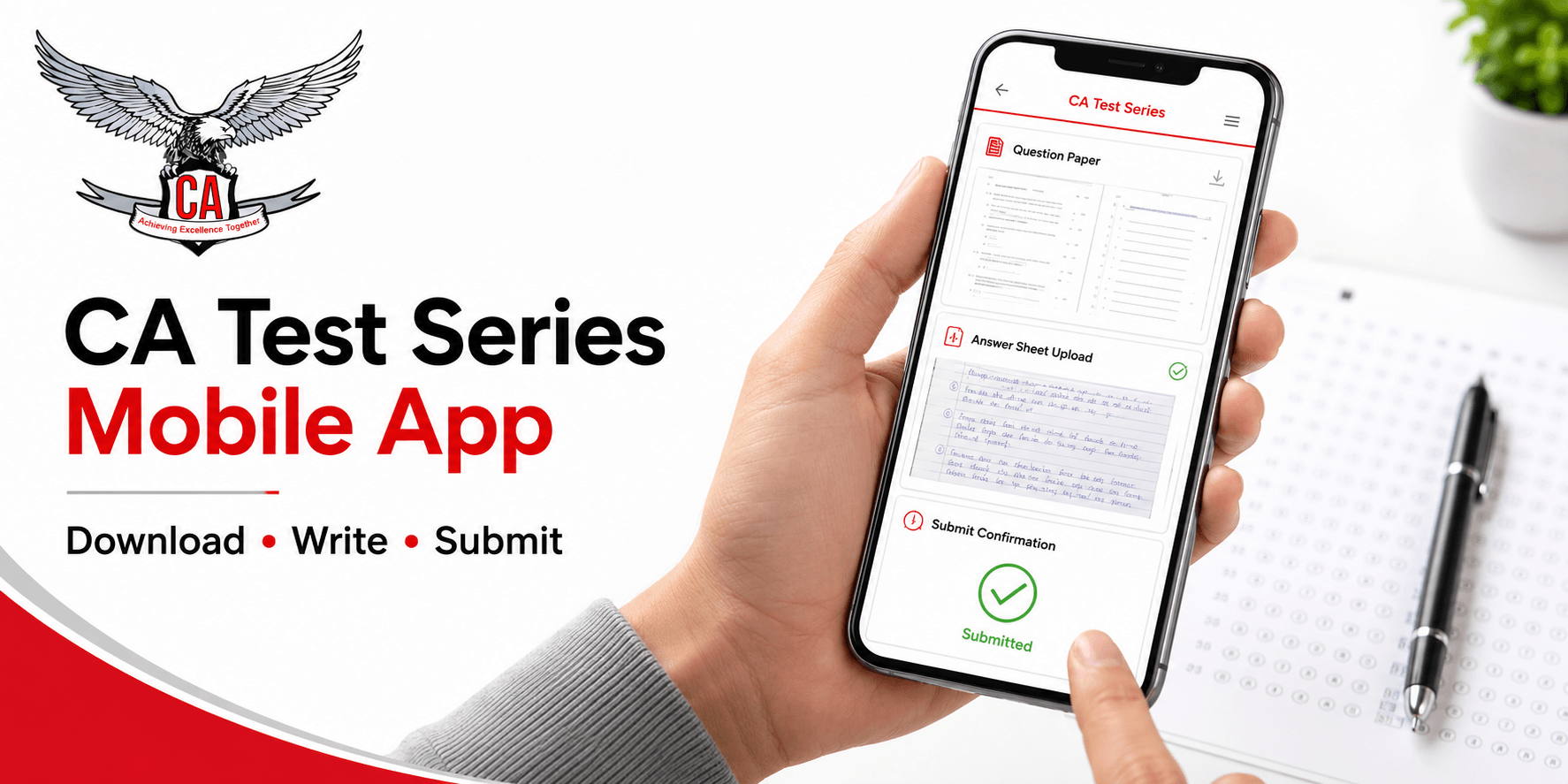
The CA Test Series mobile app helps Chartered Accountancy students access mock tests, submit handwritten answer sheets, check results, and review evaluator feedback using a smartphone or tablet. Depending on the selected package and available features, CA Foundation, Intermediate, and Final students may use the app throughout the test-practice process. This guide explains how to download the official app, register an account, access question papers, prepare scanned answer sheets, complete submission, and resolve common technical problems.
CA Test Series Mobile App: Quick Overview
What Is the CA Test Series Mobile App?: The CA Test Series mobile app is a digital examination-practice platform developed for CA students. It brings test-series activities into one place, allowing eligible users to access purchased tests, download question papers, upload completed answers, monitor evaluation status, and view marks or examiner comments without depending entirely on a computer.
Who Can Use the Mobile App: Registered students preparing for CA Foundation, CA Intermediate, or CA Final examinations may use the app when their selected course and test package support mobile access. Users generally need an active account and a purchased or assigned test series. Available papers, schedules, evaluation services, and submission options may differ between packages.
Courses Available on the App
The platform may provide chapter-wise and full-syllabus test series for different levels of the CA course. Students must carefully confirm their level, group, subject, syllabus, and intended examination attempt before purchasing a package.
CA level | Suitable test practice |
| CA Foundation | Fundamental concepts, exam familiarisation, and answer presentation |
| CA Intermediate | Group-wise preparation, chapter tests, and full-syllabus practice |
| CA Final | Advanced application, case analysis, professional writing, and time management |
What Can Students Do Through the App?: Students may be able to register or log in, purchase test packages, download question papers, submit scanned handwritten answers, check submission status, access evaluated copies, and read examiner feedback. Exact features depend on the provider, package, course level, and current version of the app.
Why Use the CA Test Series on Mobile App?
Access Tests From Anywhere: Mobile access allows students to check upcoming tests, download available papers, monitor deadlines, and view evaluation updates from different locations. A stable internet connection is still required for important activities such as downloading files, making payments, and uploading answer sheets.
Submit Handwritten Answers From Your Phone: Students can photograph or scan handwritten pages, arrange them in the correct sequence, combine them into a PDF, and upload the file from the same phone. This removes the additional step of transferring the answer sheet to a computer.
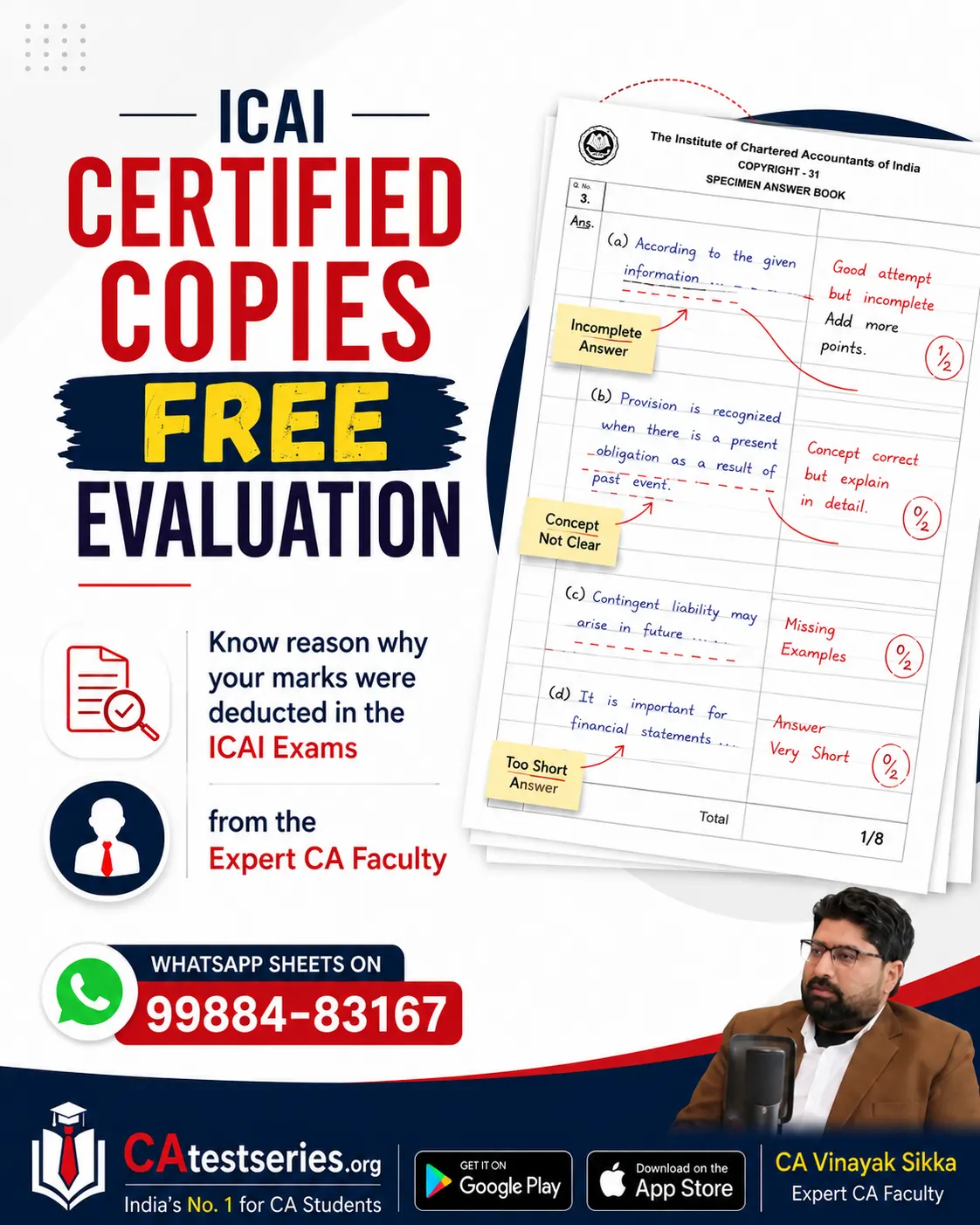
Receive Evaluation Feedback: Packages that include expert evaluation may provide marks, annotations, corrections, and suggestions about content, calculations, presentation, or answer structure. Students can use this feedback to understand why marks were lost and improve their performance in later mock tests.
Practise Under Exam-Like Conditions: Timed mock tests can help students improve writing speed, question selection, presentation, and section-wise time allocation. However, students should always check the latest syllabus, examination pattern, and applicable instructions through official ICAI resources.
Requirements Before Downloading the App
Before installing the CA Test Series app, students should prepare a compatible Android or iOS device, an active mobile number, a working email address, sufficient storage, and a reliable internet connection. A clear phone camera or trusted document-scanning application will also be needed to digitise handwritten answer sheets.
Requirement | Why it is needed |
| Compatible smartphone | To install and operate the latest app version |
| Stable internet | For registration, payment, downloads, and uploads |
| Active email and mobile number | For verification, notifications, and account recovery |
| Sufficient storage | To save question papers and scanned PDFs |
| Scanner app or camera | To create readable digital answer sheets |
| Registration details | To access an existing account or create a new one |
How to Download the CA Test Series Mobile App
Download on an Android Device: Open the Google Play Store and search for the exact name of the official CA Test Series app. Before tapping Install, verify the developer name, logo, description, website link, privacy information, and recent update details.
Download on an iPhone or iPad: Open Apple’s App Store, search for the official application, and inspect its seller details, logo, compatibility, ratings, privacy information, and linked website. Tap Get and complete the required Apple verification to install it.
Identify the Official Application: Whenever possible, use the app-store link published on the provider’s official website. Avoid downloading unofficial APK files because modified software may be outdated, incompatible, or unsafe for login and payment information.
How to Register and Log In
Open the application and select Register, Sign Up, or the equivalent option. Enter your correct name, mobile number, and email address, then complete OTP or email verification. Select the right CA level, group, subject, syllabus, and examination attempt before creating a secure password. Existing users should log in with their registered mobile number or email address instead of creating a duplicate account.
How to Select and Purchase a Test Series
Choose your CA course and applicable group, then compare chapter-wise and full-syllabus packages. Review the number of tests, included subjects, validity period, submission deadlines, permitted attempts, evaluation services, and refund conditions. Complete payment only through the official app or verified website, retain the receipt, and confirm that the purchased package appears under My Courses or Purchased Tests.
How to Download a CA Test Paper
Log in and open My Tests, Purchased Tests, or a similarly named section. Select the correct course, group, subject, and test, then review its date, prescribed duration, and submission deadline. Download the question-paper PDF and open it immediately to check the first page, last page, total page count, question order, and readability.
How to Attempt a CA Mock Test Properly
Create a quiet, exam-like environment and keep only permitted materials nearby. Follow the specified duration, write the correct question and sub-question numbers, and present answers with suitable headings, calculations, working notes, legal provisions, or conclusions where relevant. Number every answer-sheet page and reserve a few minutes for reviewing incomplete answers and numbering errors.
How to Prepare Answer Sheets for Upload
Arrange all handwritten pages in numerical order before scanning. Use good lighting, position the camera directly above each sheet, and ensure the entire page remains visible. Remove blurry or duplicate scans, rotate every page correctly, and combine the final images into one PDF if the platform requires a single file.
Answer-Sheet Upload Checklist
Before uploading | After uploading |
| Select the correct course, group, subject, and test | Open and inspect the uploaded preview |
| Include every attempted page | Confirm the total page count |
| Arrange pages in numerical order | Check that all pages remain readable |
| Remove blurred, cropped, or duplicate scans | Complete the final submission step |
| Follow the accepted format and size limit | Confirm that the status shows “Submitted” |
| Open and review the final PDF | Save the submission ID or screenshot |
How to Submit a Test Through the Mobile App
Open the Correct Test: Log in, access your purchased test series, and select the correct course, subject, and active paper. Confirm the test title and closing time before proceeding.
Select the Upload Option: Tap Submit Test, Upload Answer Sheet, or the equivalent button. If the option is unavailable, check whether the submission window has opened or already expired.
Choose the Final File: Select the completed PDF or accepted image file from your device. Confirm that the filename and answer-sheet contents match the selected paper.
Complete the Upload: Keep the application open and maintain a stable connection until the upload progress finishes. Avoid locking the phone, closing the app, or changing networks during this process.
Preview and Submit: Open the uploaded file, verify its readability and page order, and complete the final confirmation step. Uploading a file may not automatically mean that the test has been finally submitted.
Save Confirmation: Check whether the status changes to Submitted, Upload Successful, or Under Evaluation. Save the submission reference, timestamp, or screenshot as evidence.
Common App Problems and Solutions
Problem | Recommended action |
| App does not install | Check operating-system compatibility, storage, and app-store settings |
| OTP does not arrive | Verify contact details, check spam, and use the resend option |
| Purchased test is missing | Refresh the app and confirm that the correct account was used |
| Question paper will not open | Update the PDF reader and download the file again |
| Upload fails | Check the deadline, internet connection, format, and file size |
| PDF is too large | Remove blank pages and apply moderate compression |
| Status remains pending | Refresh the dashboard and retain upload evidence |
| Evaluated copy is missing | Check the evaluation status and contact official support |
How to Check Results and Use Evaluator Feedback
Open the Results, Evaluated Tests, or similar section and select the relevant subject and paper. Review the total marks, question-wise scores, checked answer sheet, annotations, and general comments. Record conceptual errors, missing calculations, weak presentation, incomplete conclusions, and time-management problems in a test-wise mistake log before attempting another mock examination.
Mobile App vs Website
Comparison point | Mobile app | Website |
| Question-paper access | Convenient for quick access | Better for reading on a larger screen |
| Scanning answers | Can use the phone camera directly | Requires an already scanned file |
| File management | Suitable for files stored on a phone | Easier for organising files on a computer |
| Result checking | Useful for quick updates | Better for detailed evaluation review |
| Technical issues | May involve permissions or updates | May involve browser or connection problems |
Mobile App Security Tips:Download the application only through a verified app-store listing or the provider’s official website. Never share your password, OTP, or account-recovery code. Use a trusted personal device for payments and submissions, keep copies of receipts and answer sheets, and install updates only from official sources.
Conclusion
The CA Test Series mobile app can make mock-test practice more convenient for CA Foundation, Intermediate, and Final students. For successful submission, choose the correct test, scan every answer-sheet page clearly, follow the stated file requirements, upload before the deadline, verify the final status, and save confirmation evidence. Because app features, submission rules, file limits, and evaluation timelines may change, always follow the current instructions displayed on the official platform.