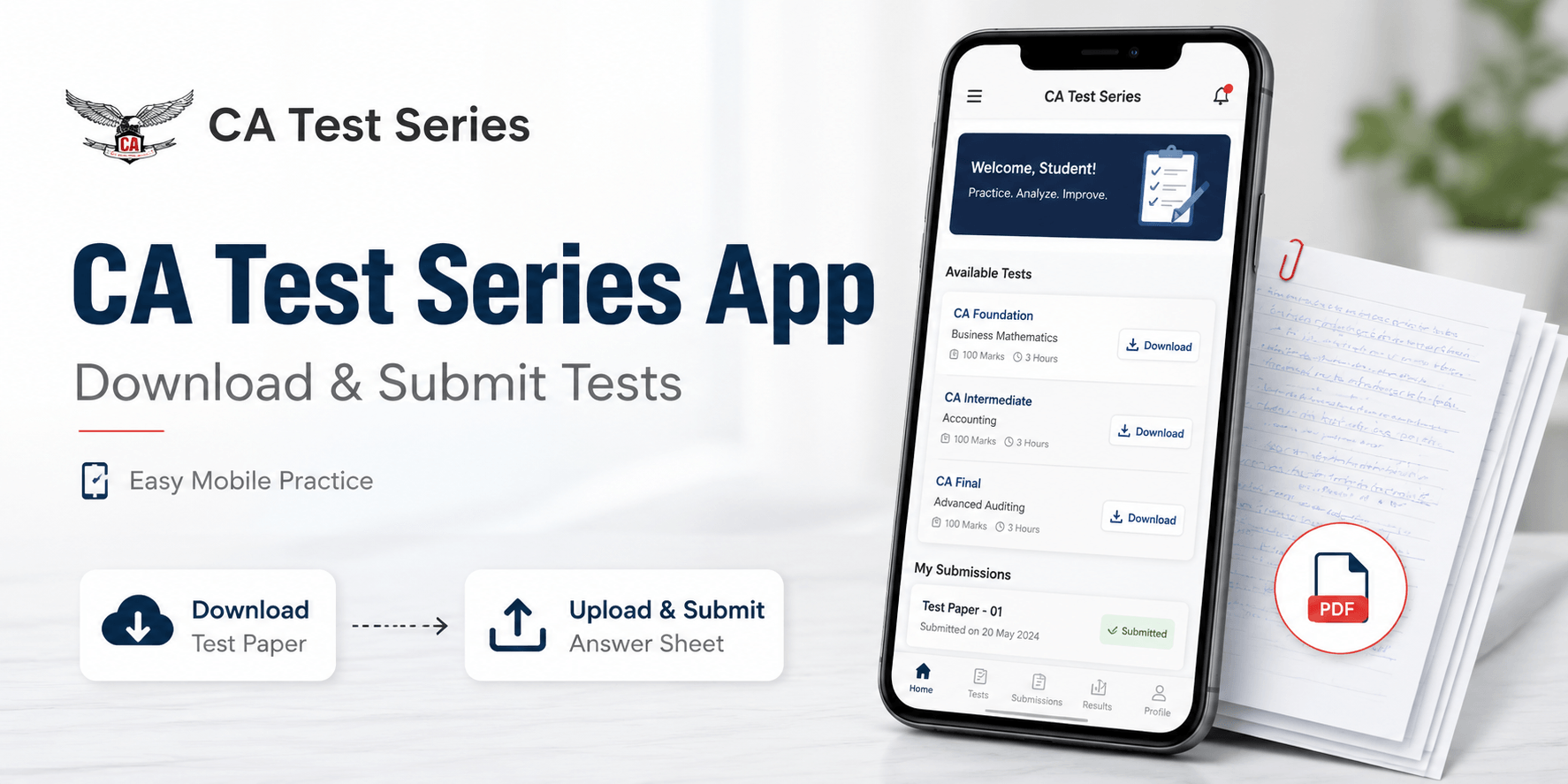
The CA Test Series mobile app helps CA Foundation, CA Intermediate, and CA Final students download mock papers, write answers by hand, upload scanned answer sheets, and review evaluated copies from a mobile device. It supports flexible preparation while preserving handwritten exam practice. Because app layouts, package features, upload limits, and deadlines may change, students should follow the latest instructions shown inside their account.
CA Test Series Mobile App: Quick Overview
The app provides a structured system for accessing chapter-wise and full-syllabus tests, practising under timed conditions, submitting written answers, and receiving evaluator feedback.
Who Can Use the App? Students preparing for CA Foundation, CA Intermediate, and CA Final can use the app. Before purchasing a package, verify the course, group, subject, syllabus, and examination attempt because an incorrect selection may display irrelevant papers.
Main Benefits for CA Students: Regular mock-test practice can improve time management, answer presentation, syllabus coverage, and confidence. Students can compare scores, study evaluator comments, identify repeated mistakes, and create a focused revision plan.
How to Download and Register
Download the app only through the official CA Test Series website, Google Play, or the Apple App Store. Check the app name, provider details, description, and references to CA Foundation, Intermediate, and Final before installing. Avoid unofficial APK files and third-party links.
Install and Open the App: Tap Install or Get, wait for the download to finish, and open the app. Allow only the permissions needed for file access, photos, camera use, or notifications.
Create Your Account: Select Sign Up or Register, enter accurate details, provide an active mobile number and email address, and complete OTP verification if required.
Select the Correct CA Level: Choose CA Foundation, CA Intermediate, or CA Final carefully. Intermediate and Final students should also confirm the group, subject, syllabus, and examination attempt.
How to Select and Purchase a Test Series
Choose a package according to your preparation stage, syllabus coverage, available time, and need for evaluation. Chapter-wise tests suit learning and revision, while full-syllabus mocks are better for final exam simulation. Before payment, check the number of tests, included subjects, validity period, evaluation features, suggested answers, and deadlines. Pay only through the authorised checkout process and save the receipt and transaction reference.
How to Access and Attempt a Test
After login, open My Tests, Dashboard, Purchased Tests, or a similarly named section. Select the correct paper, check the release date and submission deadline, and download the question paper. Open the complete PDF before starting.
Attempt the Test Under Exam Conditions: Follow the stated time limit, avoid unnecessary reference materials, and use a clear ICAI-style format. Include correct question numbers, headings, working notes, calculations, relevant provisions, and concise conclusions. Number every page and reserve time for review.
How to Submit Handwritten Answer Sheets
Arrange the pages, scan them clearly, create the required file, select the correct test, upload the document, and confirm submission. Complete the process early because poor internet, file-size issues, or unclear scans may cause delays.
Step-by-Step Submission Process
Step | Action |
| 1 | Arrange and number all pages |
| 2 | Scan or photograph each page clearly |
| 3 | Combine pages into one PDF if required |
| 4 | Select the correct subject and test |
| 5 | Upload and preview the file |
| 6 | Submit before the deadline |
| 7 | Save the confirmation screenshot |
Answer-Sheet Upload Requirements: Use only the formats accepted on the upload screen. A single PDF is often convenient, but the current app instruction is final. Pages must be upright, readable, correctly ordered, and free from blur, glare, shadows, or cropped answers. Check the displayed file-size limit for each test.
How to Reduce a Large PDF: Remove blank or duplicate pages, crop unnecessary background, and apply moderate compression. Reopen the file and confirm that handwriting, calculations, page numbers, and question numbers remain readable.
How to Check Submission Status and Results
After submission, return to the dashboard and look for a status such as pending, submitted, under evaluation, or evaluated. A successful upload may display the filename, submission time, or confirmation message. Keep the original PDF and a screenshot until evaluation is complete.
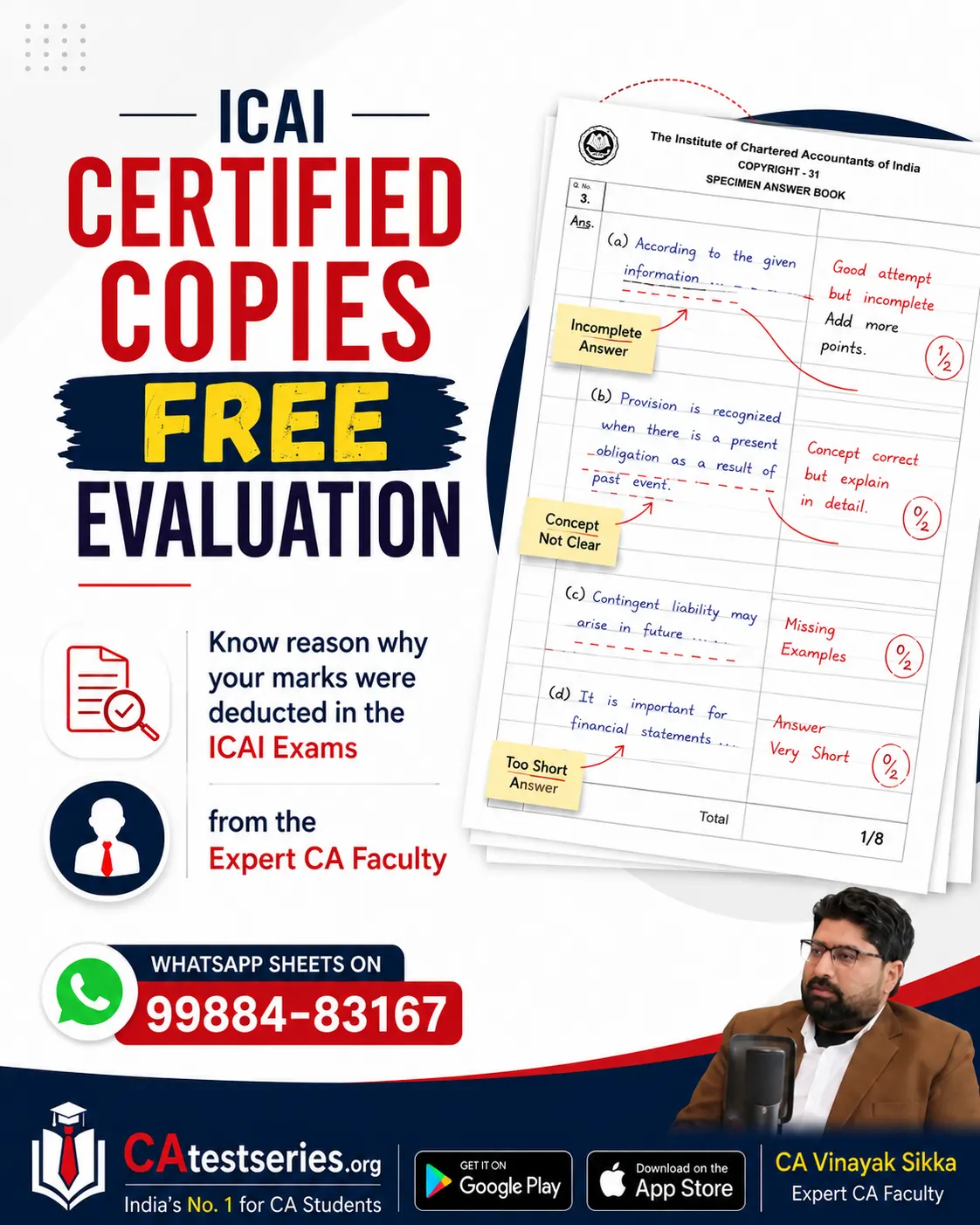
Viewing Evaluated Answer Sheets: Open the Result, Evaluated Tests, or Completed Tests section and select the relevant paper. Review total marks, question-wise scores, examiner comments, and the checked answer sheet. Download the evaluated copy where possible.
How to Use Evaluation Feedback
Do not focus only on total marks. Identify whether points were lost because of weak concepts, incomplete answers, poor structure, missing working notes, incorrect calculations, or time-management problems. Compare your response with suggested answers, record repeated errors, revise weak chapters, and apply the feedback in the next mock test.
Common App Problems and Solutions
Problem | Solution |
| App is not installing | Check storage, internet, and compatibility |
| OTP is not arriving | Check details, signal, spam, and blocked messages |
| Purchased test is missing | Confirm the account and payment reference |
| Paper will not open | Redownload it and update the PDF reader |
| Upload is failing | Check format, size, permissions, and connection |
| Confirmation is missing | Review test history and contact support |
| Evaluation is delayed | Verify submission status before contacting support |
Important Mistakes to Avoid: Do not upload incomplete answer sheets, select the wrong test, miss the deadline, use unsupported formats, submit blurred pages, or place pages in the wrong order. Keep the app open until uploading finishes and confirm that the test status has changed.
Mobile App vs Website: The app is convenient when scanned files are stored on a phone, while the website may offer easier navigation and a larger question-paper view. Use the same registered account on either platform and confirm that purchased tests are visible before submission.
Conclusion
The CA Test Series mobile app gives CA Foundation, Intermediate, and Final students a practical way to download mock papers, submit handwritten answer sheets, and receive structured feedback. For better results, attempt tests under realistic conditions, scan every page carefully, submit before the deadline, confirm the upload status, and use evaluator comments to guide revision. Consistent practice and systematic review can make the app an effective part of CA exam preparation.